Movement • Sprint • Peek & Lean • Gyroscope • Claw Layout • Updated November 2026
PUBG Mobile Movement Settings Guide 2026: Fast Movement, Sprint Sensitivity, Peek & Claw Layouts
The pubg fast movement settings that separate a hard target from an easy kill are not a secret speed hack — they are a handful of real settings most players never touch. Sprint sensitivity decides how fast your character breaks into a run. Peek & Fire decides whether you can shoot around a wall without showing your whole body. Separate jump and climb decides whether a jump-shot is a jump or an accidental climb into the open. And the gyroscope decides whether you can strafe and shoot at the same time. This guide covers every one of them with verified facts, names where the guides disagree, and says plainly where no official figure exists.
Direct answer: The best pubg fast movement settings start with Sprint Sensitivity at 65–75% in Settings > Advanced Controls, the sprint lock engaged by pushing the joystick past its outer edge, Peek & Fire enabled with Tap or Mixed lean mode, Jump/Climb set to Separate, and the gyroscope on Scope On (or Always On once you are used to it). There is no auto-sprint toggle and no published sprint-speed figure — the speed comes from sprinting sooner and moving unpredictably, not from a hidden setting.
The honest truth about fast movement first
Before the settings, one correction that saves a lot of wasted effort. Dozens of short videos promise a “fast running trick” that makes your character run faster — and then show the same three settings this guide covers. What they are really showing is a character that starts sprinting sooner and stops getting stuck: a sprint sensitivity that triggers at a smaller joystick push, a sprint lock that keeps the run going without holding the stick, and a layout where the joystick does not fight the player. KRAFTON has published no sprint-speed number for PUBG Mobile, and no setting raises your top running speed — sprinting is the top speed, and every player has access to it from the first match. What the settings below change is how quickly you reach that speed, how reliably you stay in it, and how much you can do — aim, lean, jump, shoot — while you are moving. That is what “fast movement” actually means in this game, and it is what this guide teaches.
This guide is current for Season 33, which started on 13 November 2026 with version 4.7 and runs to 14 January 2027. The settings live in two menus: Basic Controls and Advanced Controls, both under Settings in the lobby. Where a setting has moved between versions, this guide names it by its label rather than its exact screen position — check the label, not the scroll position. The game mechanics guide covers the systems these settings sit inside, and the tips and tricks guide covers the match sense that makes fast movement useful instead of just fast.
Sprint settings: how to run faster, sooner
Sprinting in PUBG Mobile works differently from most shooters, and that is why so many players run slowly without knowing it. There is no sprint button on the default layout. The game watches how far you push the left movement joystick: push it forward and you walk, push it further and hold it and your character breaks into a sprint. Push it past the sprint line at the outer edge of the joystick and a sprint icon with arrows appears — slide up to it and sprint locks on, so you keep running without holding the stick. That lock is the feature every “fast running” video demonstrates, and it is already in your game.
- Sprint Sensitivity (Settings > Advanced Controls). This is the one slider that matters most for pubg fast movement settings. It sets how far you must push the joystick before sprinting triggers — a lower value means a shorter push, so you sprint sooner; a higher value needs a bigger push. The setting arrived in version 1.6, and it only affects straight-line sprinting, not the speed of side-to-side jiggle movement. Start at 70%, then adjust in 5% steps: if you keep sprinting when you meant to walk, raise it; if sprinting feels sluggish to start, lower it.
- What value to use. The guides disagree, and this guide will not pretend otherwise. GamersDecide recommends 60–70% for the first control layout and over 80% for the third; Item4Gamer recommends 65% as a pro starting point; creators demonstrating the fix in 2026 use 75%, and note others use 85–90%; one 2026 pro-settings guide recommends 85–100% for aggressive jiggle play. The honest reading is that 65–75% is the safe starting range for most players, and the right value depends on your layout and thumb — test it in the Training Grounds, not in a ranked match.
- Joystick size matters as much as the slider. A bigger joystick means a longer physical push before you cross the sprint threshold, which is why guides pair a sprint-sensitivity change with a joystick-size change: GamersDecide suggests a 220% joystick for the first layout, while 2026 creators variously use 116% or around 175%. There is no universal size — set the joystick large enough that your thumb rests on it comfortably, then set sprint sensitivity so the sprint triggers where your thumb naturally reaches.
- There is no auto-sprint toggle. PUBG Mobile has no setting called auto-sprint or always-sprint. If you want to run without holding the joystick, use the sprint lock described above. A second, separate sprint button can also be placed through the layout editor — 2026 creators show enlarging it to 110–250% and parking it above the joystick — but that is a layout choice, not a speed setting, and a sprint button placed too close to the joystick can cause accidental sprinting.
- Sprinting has a cost. You cannot fire while sprinting, and sprinting into a fight means arriving with your weapon down. The skill is not sprinting everywhere — it is sprinting between cover, then dropping to a walk (or a stop) with your weapon ready before the next angle opens. Sprint to rotate, walk to fight.
One more warning about the videos: several 2026 clips also toggle on “FPP Dynamic Holding” alongside sprint sensitivity and present it as a speed setting. It is not — it changes how your weapon sits in first-person view. It does nothing to your movement speed. Leave it off unless you play FPP and prefer the lower weapon position.
Peek & lean: shoot around cover without exposing yourself
Peeking — leaning your character sideways around a wall, rock or window — is the single highest-value movement setting in the game, and it is off by default. A player behind cover who leans out shows only a shoulder and a head to the enemy while keeping their full aim; a player who steps out shows their whole body. Enable it before your next match.
- Peek & Fire (Settings > Basic Controls). Set it to Enable. This is the master switch: without it, no lean buttons appear on your screen at all. Multiple guides, including the Google Play editorial guide to the mechanic, confirm it is disabled by default and must be turned on in the Basic Controls tab.
- Peek & Open Scope. Turn this on and your scope opens automatically the moment you lean — one less button to press, and the right choice if most of your peeks are scoped shots at mid or long range. Turn it off if you often lean just to look, or if you fire unscoped at close range, so leaning does not force you into a scope you did not want.
- Lean mode: Tap, Hold or Mixed. Tap means press once to lean and press again to straighten — best for holding an angle while sniping. Hold means you stay leaned only while your finger is down — best for quick checks and fast peeks. Mixed supports both. The Google Play guide recommends Mixed for the greatest flexibility, and 2026 claw guides generally use Mixed too; two-thumb players usually prefer Tap, because holding a lean button ties up a finger they need for firing.
- Lean right when you can. In third-person view the camera sits over your character’s right shoulder, so leaning right exposes less of your body than leaning left. When you choose which side of a wall to fight from, the right side is usually the safer angle — a small detail that wins duels.
- Place the lean buttons where your fingers already are. The two lean buttons appear on the left of the screen by default. In the layout editor, move them next to your fire button for two-thumb play, or to your left index finger if you play claw — the point is to lean and fire at the same moment, without moving a finger across the screen. Turn off “Camera Rotation while Leaning” in Advanced Controls so your aim does not drift when you lean.
Peeking is a movement skill, not just a setting: lean out, take the shot, lean back — and vary the timing. A player who leans on a fixed rhythm gets pre-aimed and headshot; a player who leans, waits, leans again from the other side, then holds, is unreadable. Practise the rhythm in Team Deathmatch, where the cost of a mistake is a respawn, not a lost match.
Jump, climb and vault: separate the buttons
The jump button in PUBG Mobile does two jobs by default — jump and climb — and the game guesses which one you meant. It guesses wrong at the worst moments: you try a jump-shot over a low wall and your character climbs it instead, standing upright in the open while the enemy shoots you. The fix is one toggle.
- Jump/Climb: Separate (Settings > Advanced Controls). This splits the merged button into a jump button and a climb button. Every 2026 control guide checked for this page recommends it — for claw players, for two-thumb players, for everyone. With separate buttons, a jump is always a jump, and a climb only happens when you press climb deliberately. You can also separate the two buttons in the layout editor and park the climb button somewhere you will not hit by accident.
- Vaulting through windows. With separate buttons, climbing through a window is a deliberate press instead of a surprise. The crouch-jump — pressing crouch and jump together — is the documented way to get through a window quickly, and it works because the crouch lowers your character into the opening while the jump carries you through. Practise it in the Training Grounds on the compound windows before you rely on it in a match.
- Prone jump. Pressing jump and prone at the same time — which needs the separate Jump/Climb setting — launches a prone jump: your character dives forward out of a doorway or window, low and fast, and is much harder to headshot than a player who walks out upright. It is the hardest movement trick in this guide and it needs precise timing, but it is the fastest way out of a building when an enemy is waiting on the door.
- Bunny hopping. Repeated jumps while moving — timing jump presses as you land — keeps you a difficult target and, according to community movement guides, helps you climb hills faster and dodge fire in the open. It does not make you run faster, and jumping repeatedly makes your own aim worse, so use it to cross open ground under fire, not to fight.
The theme of this section is control: every accidental climb, every mistimed vault, every jump that became a climb is a moment your character did something you did not ask for. Separate buttons remove the guessing, and the guessing is what gets players killed.
Crouch & prone movement: slower, quieter, harder to hit
Crouching and going prone both slow you down — there is no setting that makes them fast, and any guide that promises a “fast prone” is selling a trick that does not exist. What they give you instead is a smaller target and, in the case of prone, near-invisibility in grass. The skill is knowing when the trade is worth it.
- Merge Crouch and Prone: Separate (Settings > Advanced Controls). By default the crouch and prone buttons can be merged into one button that toggles between them. Set it to Separate so you get two buttons — one for crouch, one for prone — and you never drop flat in the open when you only meant to crouch behind a wall. The 2026 claw guides all list this alongside separate Jump/Climb as a non-negotiable setup step.
- Crouch movement. Crouching lowers your profile and steadies your aim, and crouch-walking behind low cover keeps you hidden while you reposition. The crouch jiggle — starting a side-to-side jiggle and dropping into a crouch mid-movement — breaks an enemy’s aim at the exact moment they expect you to keep strafing, and it is one of the most effective close-range movement tricks in the game.
- Prone movement. Going prone makes you the smallest target in the game and hides you in grass and behind low ridges, but you move at a crawl and you cannot react quickly — a prone player who gets caught in the open is a free kill. Use prone to hold an angle in the final circles, not to rotate. And remember the drop shot: tapping prone while firing drops you flat mid-spray, and the enemy who was aiming at your chest is suddenly shooting over your head.
- Standing up is a move too. The most common crouch mistake is staying crouched after the fight has moved on. If the enemy has repositioned, or the zone is closing, stand up and sprint — a slow crouch-walk across open ground is slower than a sprint and just as exposed.
Gyroscope’s role in movement control
The gyroscope does not move your character — it moves your aim, by tilting the phone — and that is exactly why it matters for movement. Without gyro, your right thumb does two jobs at once: it steers the camera and it corrects recoil. With gyro on, the tilt handles recoil and fine aim, and the thumb is free to do what it is actually for in a fight: strafing, jiggling and repositioning. A player who can move and shoot accurately at the same time is a player who is hard to hit and hard to miss.
- Scope On vs Always On. The two modes are named in the PUBG Mobile Help Center: Scope On activates the gyro only while you aim down sights, and Always On keeps it active at all times. Start on Scope On — the Google Play editorial guide to the gyroscope recommends it for beginners, because Always On moves your camera every time you shift the phone while running. Switch to Always On after a week or two, once scoped sprays feel controlled; most competitive players end up on Always On, because it lets you control recoil even while hip-firing.
- Starting gyro sensitivities. Community 2026 guides converge on a pattern: high gyro for unscoped and low-zoom sights, lower gyro for high zoom. A solid starting point is 300% for no-scope and red dot, 280–300% for 2x, 220–280% for 3x, 170–200% for 4x, 110–140% for 6x and 70–100% for 8x. Those are starting points, not gospel — adjust in 5–10% steps in the Training Grounds until a full magazine stays on the target with tilt alone.
- Calibrate, then leave it alone. Calibrate the gyroscope on a flat, stable surface (Settings > Sensitivity > Gyroscope > Calibrate) while holding the phone at the angle you actually play at. Heat over a long session can drift the sensor — if your aim starts pulling to one side mid-session, recalibrate rather than chasing the sensitivity sliders.
- Two gyro habits that ruin movement. First, do not use gyro while driving — tilting the phone to steer turns the camera every time you hit a bump, so switch to Scope On or turn gyro off before you drive. Second, turn off your device’s auto-rotate before a session, so a sharp tilt mid-fight does not flip your screen.
The gyroscope is the one setting in this guide with a real learning curve — expect a week of worse aim before it gets better. That week is worth it: the players who move fastest in close fights are almost always the players whose thumbs are free to move, because the gyro is doing the aiming.
Sensitivity settings that affect movement
Most sensitivity sliders are about aiming, not moving — but three of them change how movement feels, and getting them wrong makes even correct technique feel sluggish. The pubg fast movement settings that matter here are the camera sensitivities, because they decide how fast your view turns when you strafe, flick and change direction.
- Camera sensitivity (no scope). This is how fast your view turns when you drag the screen without firing. 2026 guides recommend roughly 115–130% for third-person no-scope and 110–120% for first-person — high enough to flick 180 degrees during a jiggle without lifting your thumb, low enough that you do not overshoot. Item4Gamer’s movement guide suggests TPP camera sensitivity of 70–90% for jiggle play, which is lower — the disagreement is real, and it comes down to whether you turn with your thumb or with the gyro. If you use gyro, keep camera sensitivity lower; if you do not, keep it higher.
- ADS sensitivity. This is how fast your crosshair moves while firing. It does not change your movement speed, but a too-high ADS sensitivity makes your aim swing wildly every time you strafe, which makes jiggling while shooting feel uncontrollable. Start around 110–120% for TPP no-scope ADS and 50–60% for red dot, then tune against the Training Grounds dummies at 25 metres.
- Horizontal Swipe Acceleration. An Advanced Controls toggle that speeds up your camera turn when you swipe fast. Movement guides recommend enabling it: it lets a quick flick turn you around fast while slow drags stay precise, which is exactly what a jiggle needs — fast direction changes without losing fine aim.
- Free Look. The eye button that lets you look around without changing your movement direction. It is a movement skill in itself: hold it while sprinting and you can scan the ridge lines and doorways ahead without steering your character off course. Set its sensitivity high enough that a short drag covers a wide arc.
Do not copy a pro player’s sensitivity code and expect it to work. Sensitivity is personal — it depends on your phone size, your thumb length and whether you use gyro — and a code built for a tablet will feel wrong on a 6.1-inch phone. Use the ranges in this guide as a starting point, then tune one slider at a time in the Training Grounds, and write down what you changed so you can undo it.
Layout tips: claw layout and button placement for movement
A layout is not decoration — it is the difference between doing two things at once and choosing between them. Two-thumb play forces a choice: you can move, or you can shoot, or you can scope, but not all three at once. The claw layout exists to remove that choice, and it is the layout every serious movement guide recommends.
- The 4-finger claw, in one paragraph. Left thumb owns the movement joystick. Left index finger owns the fire button (set the left fire button to Always On so it never disappears). Right thumb owns the camera and the right fire button. Right index finger owns scope, jump, crouch and peek. That split means you can sprint, jump, scope, lean and fire at the same time — which is the entire point. The 2026 claw guides (BitTopup, GamerPapers) agree on this finger map, and both stress the same thing: more fingers add simultaneous inputs, they do not raise your walk speed.
- Control Layout 3: fixed joystick. Item4Gamer’s movement guide recommends Control Layout 3, which keeps the joystick in a fixed position instead of letting it follow your thumb. A fixed joystick means the sprint threshold is always in the same place, so your muscle memory for “push to sprint” is consistent from match to match. A floating joystick is more forgiving for casual play, but it makes sprinting less predictable.
- Button placement rules. Put jump, crouch and peek in a tight cluster under your right index finger, with about a 15% button-width gap between them so you do not fat-finger two at once. Put the scope button where your right index finger rests naturally — top right for most players. Keep the fire button large (120–140% in the 2026 claw guides) and fixed, so your aim does not move while you shoot. And put the sprint button — if you use one — above the joystick, never touching it, so it cannot cause accidental sprinting.
- The toggles that go with claw. Peek & Fire on, Peek Mode Mixed, Peek & Open Scope off (claw players scope manually), Camera Rotation while Leaning off, Camera Rotation while ADS off, Jump/Climb Separate, Merge Crouch and Prone off. That set is consistent across the 2026 claw guides, and it exists for one reason: it stops the game from doing something you did not ask for while your fingers are busy.
- Learn it slowly. Going from two thumbs to four fingers will make you worse for the first week — that is normal, and every claw guide says so. Practise one new finger at a time in the Training Grounds: left index firing first, then right index scoping, then peek. Do not take a half-learned claw into ranked.
Movement techniques: strafing, zig-zag running, jump-shots and peek timing
Settings give you the tools. Techniques are what you do with them. These are the documented movement techniques that show up in every 2026 movement guide, and they all share one principle: a moving target that changes direction unpredictably is far harder to hit than a fast target running in a straight line.
- Strafing and the jiggle. Drag the joystick left and right in short, sharp bursts while your crosshair stays on the enemy. You strafe in short bursts so the enemy has to re-aim every half second, while you keep shooting. The jiggle works best at close range, needs a sprint sensitivity around 65–75% so the joystick responds instantly, and needs a fixed joystick so the stick does not drift. Practise it against the moving targets in the Training Grounds before you use it in a fight.
- Zig-zag running. When you cross open ground under fire, never run in a straight line. Change direction every few steps — left, right, left — so the enemy cannot lead their shots. This is the oldest movement advice in the game and still the most effective: a straight-line sprinter is a free kill at mid range, a zig-zag sprinter forces the enemy to guess. Sprint between cover, zig-zag across the gaps, and never cross the same open ground twice the same way.
- Jump-shots. Jump and fire at the same time to surprise an enemy over a low wall or around a corner — you appear above the cover they are aiming at, and their first shots go under you. This only works reliably with Jump/Climb set to Separate: with the buttons merged, the same press can climb you onto the wall instead, leaving you standing in the open. Jump, shoot, land, reposition — never jump-shot twice from the same spot.
- Slide and peek timing. There is no slide mechanic in PUBG Mobile — if a guide promises a “slide”, it is describing another game. The closest thing is the peek rhythm: lean out, shoot, lean back, and change the timing every time. Lean fast twice, then hold the third lean a beat longer; lean left, then lean right from the same cover. The enemy who pre-aims your rhythm is the enemy who wastes a magazine on an empty doorway.
- Drop shot. Tap prone while firing to drop flat mid-spray. The enemy aiming at your chest is suddenly shooting over your head, and at close range the drop shot wins fights outright. It needs the separate prone button — with crouch and prone merged, you may crouch instead of dropping, which does not break their aim at all.
- Movement combos. The advanced techniques combine the basics: a crouch jiggle (jiggle, then drop into a crouch mid-strafe), a jump-peek (jump and lean at the same time over low cover), and a spray transfer while strafing (hold fire and walk your crosshair from one enemy to the next). None of these is possible on a two-thumb layout — they are the payoff for learning the claw, and they are why competitive players put up with a week of worse aim to learn it.
Common mistakes that make you slow and easy to hit
- Running in straight lines across open ground. The most common way to die in this game. Zig-zag, use cover, and sprint only between safe points.
- Sprinting into a fight with your weapon down. Sprint to rotate, then slow to a walk with your gun ready before the next angle. Arriving fast and unready is worse than arriving slow and ready.
- Leaving Peek & Fire off. It is off by default, and players who never open Advanced Controls fight every wall without it. Turn it on once and it stays on.
- Merged jump and climb. The accidental climb is the most embarrassing death in the game, and it is one toggle away from never happening again.
- Copying a pro’s sensitivity code. A code built for a tablet and a gyro player will feel terrible on a phone without gyro. Use the ranges in this guide and tune them yourself.
- Jumping constantly in a fight. Bunny hopping makes you harder to hit, but it makes your own aim worse too — and a player who jumps on a fixed rhythm is easy to track. Jump to cross ground or surprise an enemy, not as a habit.
- Staying prone after the fight moves on. Prone is for holding an angle, not for rotating. If the zone is closing, stand up and sprint.
- Believing a “fast running trick” video. There is no secret speed setting and no published sprint-speed figure. The videos are showing sprint sensitivity, the sprint lock and a clean layout — the three real settings in this guide, dressed up as a trick.
Buying an account with the gear already unlocked (27 November 2026)
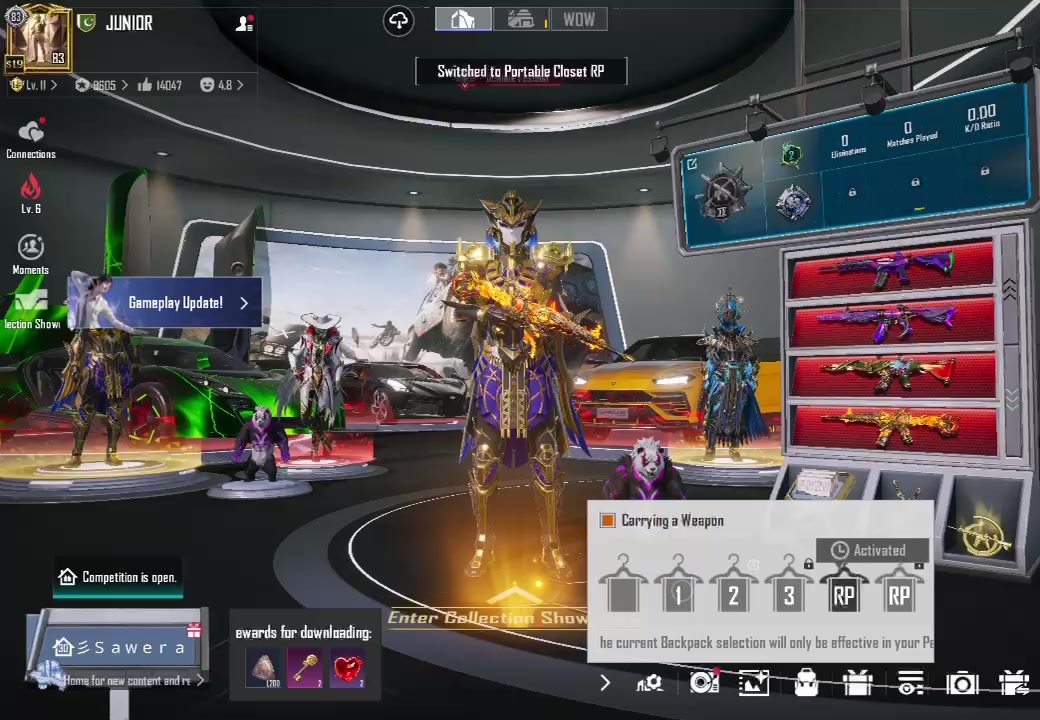
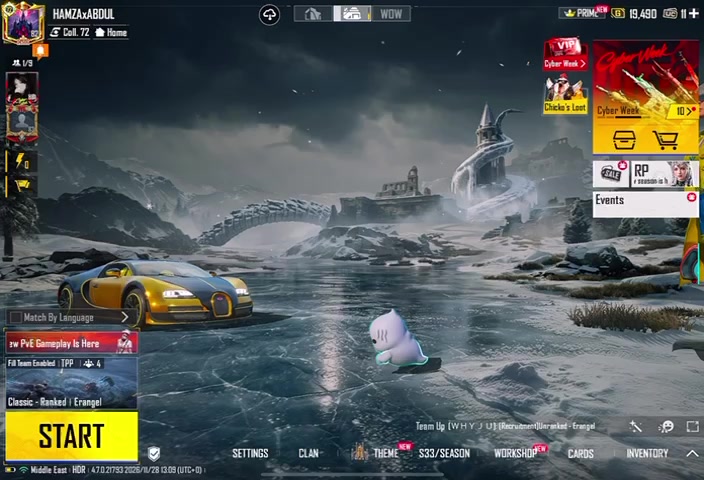
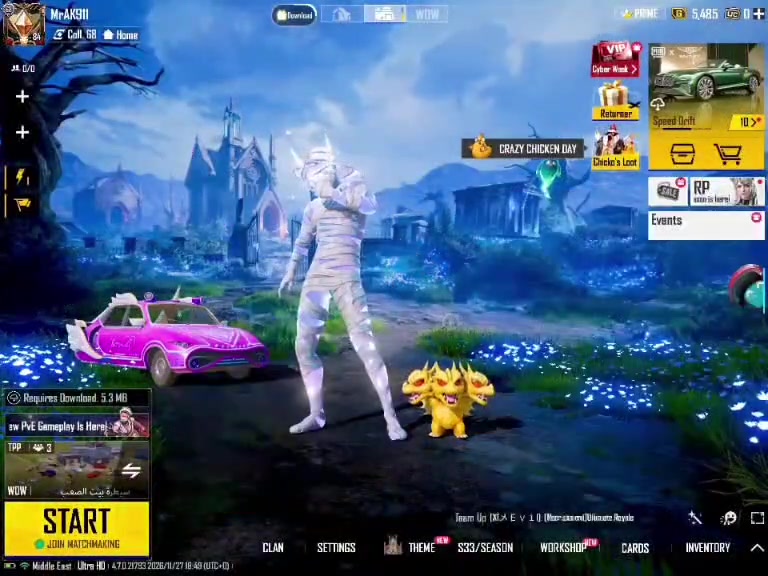
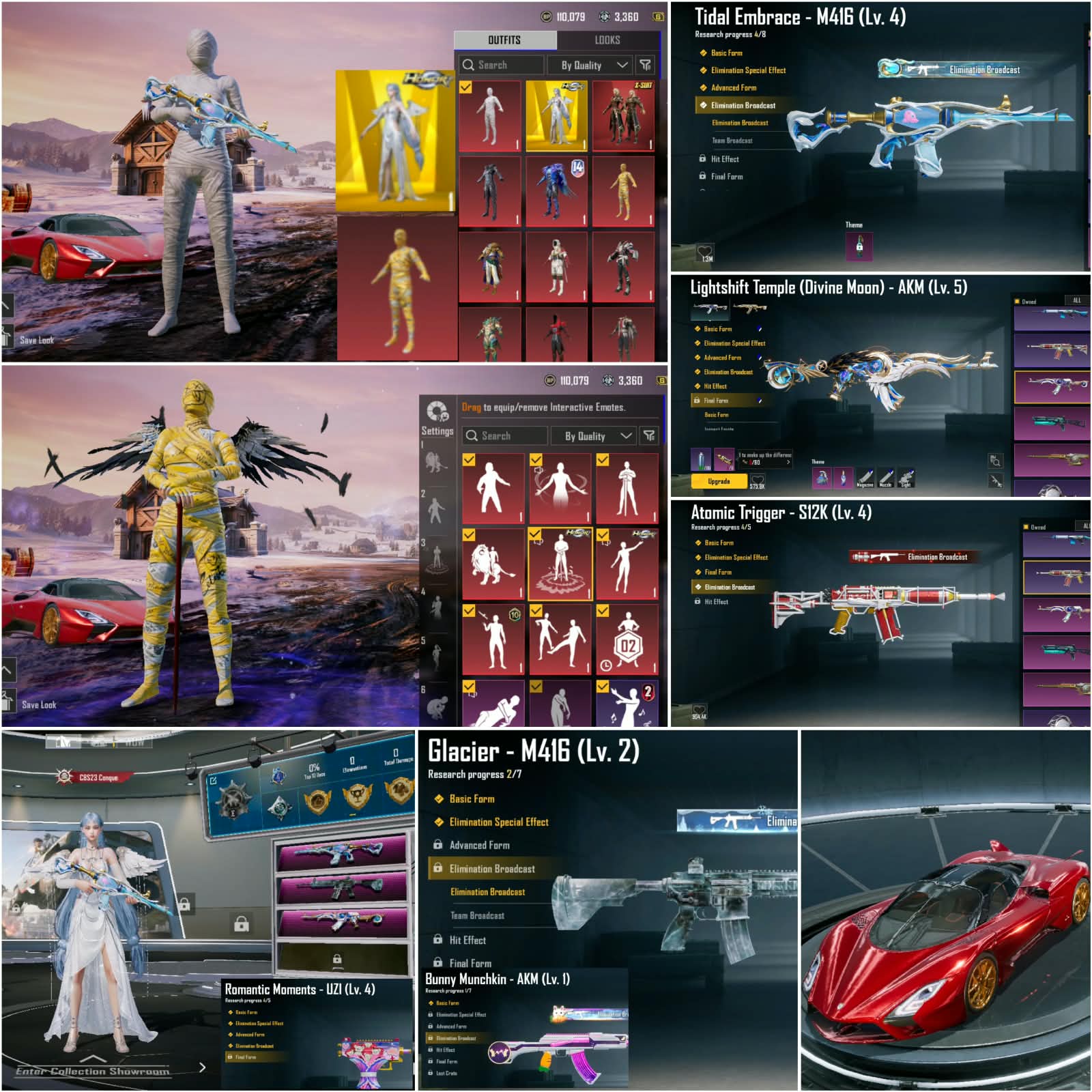
Movement is learned by playing, but the account you play it on can be bought ready-made — with the outfits, weapon skins and season history already on it. As of 27 November 2026, 217G has 144 accounts live and available, with 133 PUBG Mobile accounts at a median price of Rs 64,000 — from the cheapest PUBG Mobile account, #5398 at Rs 7,000, to the top account, #5493 at Rs 3,388,000. Free Fire lists 7 accounts from Rs 6,000 to Rs 468,000, TikTok has 1 live account (#5212 at Rs 9,000, not monetised), and 8 Ball Pool and Instagram currently list 0 products. An account’s value is in what travels with it — rare outfits, gun skins and rank history — so check the account’s in-game inventory on a live screen share before you pay, and treat any listing that claims an item without showing it as unverified. The outfits guide covers what else travels with an account, and PUBG UC covers what UC actually buys once you own it.
Frequently Asked Questions
What are the best pubg fast movement settings?
Start with Sprint Sensitivity at 65–75% in Settings > Advanced Controls. That is the range most 2026 guides agree on as a starting point — GamersDecide recommends 60–70% for the first control layout, Item4Gamer suggests 65%, and several creators use 75% — while some aggressive players run 85–100%. There is no single correct value: a lower value makes sprinting trigger sooner and jiggling easier, a higher value needs a bigger joystick push. Set 70%, play ten matches, then move it 5% at a time until sprinting feels instant and walking stays under your control.
How do you sprint in PUBG Mobile?
There is no dedicated sprint button on the default layout. Push the left movement joystick fully forward and hold it — after a moment your character breaks into a sprint. Or push the joystick past the sprint line at its edge: a sprint icon with arrows appears, and sliding up to it locks sprinting on so you no longer have to hold the joystick. Sprint Sensitivity in Advanced Controls sets how far you must push the joystick before sprint triggers — lower values sprint sooner, higher values need a bigger push.
Is there an auto-sprint setting in PUBG Mobile?
No — there is no setting called auto-sprint or always-sprint in PUBG Mobile. The closest thing is the sprint lock: push the movement joystick past the sprint threshold at its outer edge and slide to the sprint icon, and your character keeps sprinting without you holding the joystick. That is the feature the "fast running" videos are demonstrating, not a hidden toggle. If a guide tells you to turn on an auto-sprint switch, it is describing the sprint lock, or it is describing the PC version, which has different controls.
How do I enable peek and fire in PUBG Mobile?
Peek & Fire is off by default. Go to Settings > Basic Controls (or the Controls tab), find Peek & Fire and set it to Enable, then choose a lean mode: Tap (press once to lean, press again to reset), Hold (stay leaned only while you hold the button) or Mixed (both). Turn on Peek & Open Scope if you want your scope to open automatically when you lean. Two lean buttons then appear on your layout — move them next to your fire button in the layout editor so you can lean and shoot at the same time.
Should jump and climb be separate buttons in PUBG Mobile?
Yes — almost every 2026 control guide recommends it. In Settings > Advanced Controls, set Jump/Climb to Separate. With the buttons merged, pressing jump next to a low wall can climb you over it instead, exposing you in the open — the most common way players die mid-jump-shot. Separate buttons give you a jump button and a climb button, so a jump-shot is always a jump. The same menu has Merge Crouch and Prone: set it to Separate too, so you never go prone by accident when you meant to crouch.
Does the gyroscope help with movement in PUBG Mobile?
Yes, indirectly but significantly. The gyroscope does not make your character run faster — nothing does that except sprinting — but with Gyroscope set to Always On, tilting your phone controls your aim while your right thumb stays free to strafe and jiggle, so you can move and shoot accurately at the same time. With Scope On, the gyro only works while aiming down sights. Start on Scope On, calibrate on a flat surface, and use around 300% gyro sensitivity for no-scope and red dot, dropping to roughly 90–170% at 4x–8x. The Google Play editorial guide to the gyroscope recommends Scope On for beginners for exactly this reason.
What is jiggle movement in PUBG Mobile, and how do I do it?
Jiggle movement is rapidly dragging the movement joystick left and right while your crosshair stays on the enemy — you strafe in short bursts so the enemy has to track a moving target while you keep shooting. It works best in close-range fights and is the core of the "fast movement" playstyle. It needs a sprint sensitivity low enough that the joystick responds instantly (around 65–75%) and a fixed joystick (Control Layout 3) so the stick does not drift under your thumb. Practise it in the Training Grounds against the moving targets before taking it into ranked.
What is the fastest way to move in PUBG Mobile?
Sprinting with the joystick pushed fully forward and locked is the fastest on-foot movement in the game — there is no faster run speed to unlock, and KRAFTON has published no sprint-speed figure, so any page quoting one in metres per second is guessing. Crouching and going prone are both slower than walking, and firing your weapon while moving slows you further. For real distance, use a vehicle: the maps guide covers which vehicles spawn where. The honest answer is that "fast movement" in PUBG Mobile is about sprinting sooner, changing direction unpredictably, and never standing still in the open — not about a secret speed setting.
Related guides
PUBG Mobile Game Mechanics Guide · PUBG Mobile Tips and Tricks Guide · PUBG Mobile Ranks Guide · PUBG Mobile Maps Guide · PUBG Mobile Servers Guide · PUBG Mobile Outfits Guide · PUBG Mobile Best Weapon Attachments Guide · PUBG UC